Quick Answer
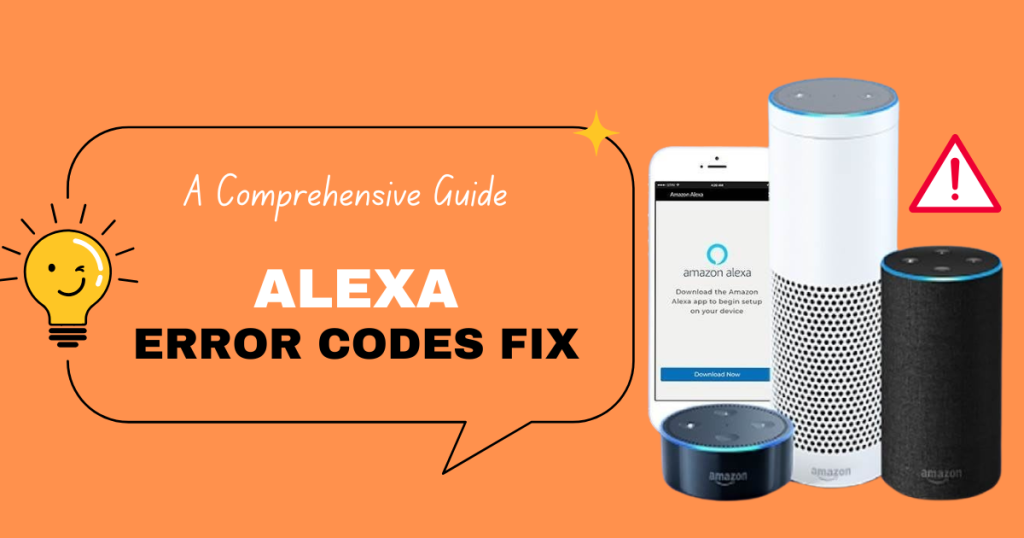
Most Alexa error codes are Wi-Fi or power issues. The fastest fix for almost any error code: restart your router, then power-cycle the Echo device (unplug 30 seconds). If the code is about a Wi-Fi connection, reset the network in the Alexa app: Devices → your Echo → Network → Change, and re-enter your password.
Most Common Alexa Error Codes
| Error Code | What It Means | Fast Fix |
|---|---|---|
| Error 4000 | Wi-Fi connection lost | Restart router, reconnect in app |
| Error 4101 | Wrong Wi-Fi password | Re-enter password in app |
| Error 4600 | No internet connection | Check ISP, restart router |
| Error 4625 | Something went wrong | Power-cycle the Echo device |
| Error -1 | Server/connection issue | Wait a few minutes, retry |
Step-by-Step: Fix Any Error Code
1. Restart Your Router
Unplug the router for 30 seconds, plug it back in, and wait 2 minutes. This clears most connection errors.
2. Power-Cycle the Echo
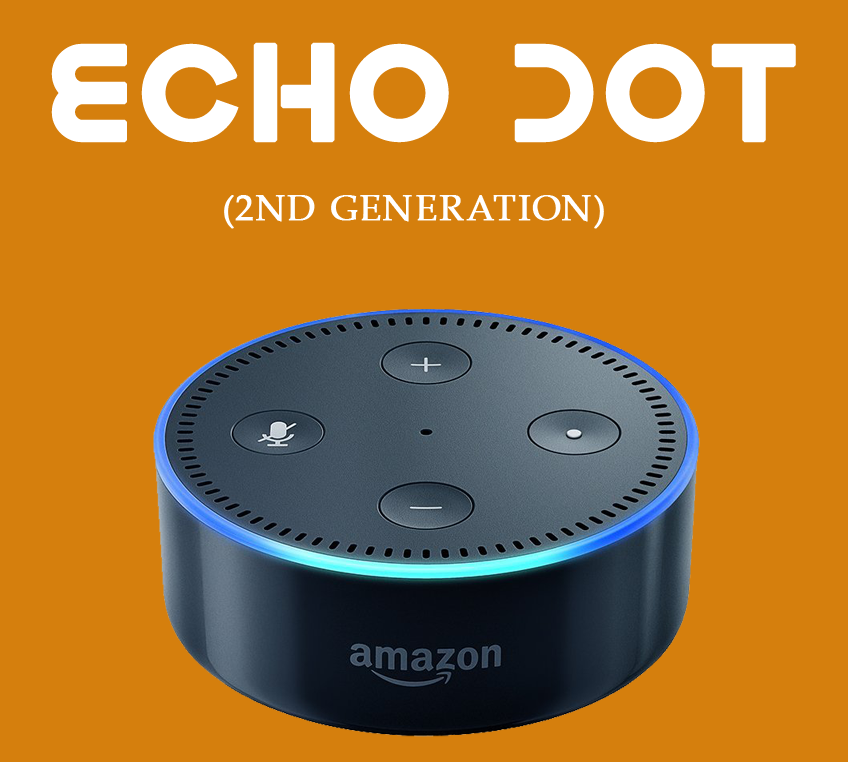
Unplug the Echo device for 30 seconds, then plug it back in. Wait for the blue light ring to spin.
3. Reconnect to Wi-Fi in the App
Open the Alexa app → Devices → your Echo → Network → Change → re-enter your Wi-Fi password → Connect.
4. Use a 2.4GHz Network
Echo devices work best on 2.4GHz. If your router is dual-band, make sure 2.4GHz is enabled.
5. Factory Reset as a Last Resort
Hold the Action button for about 20 seconds until the ring turns orange, then set the device up fresh in the app.
Recommended Echo Device
If your Echo is old and glitching with error codes, upgrading to the latest model eliminates most Wi-Fi and hardware problems.
👉 Shop Amazon Echo devices on Amazon
FAQ
Q: Why does Alexa keep saying “something went wrong”?
A: Usually a temporary server or Wi-Fi issue. Restart the device and retry in a few minutes.
Q: How do I fix Alexa error code 4101?
A: That means a wrong password. Re-enter your Wi-Fi password in the Alexa app.
Q: Does Alexa need 2.4 or 5 GHz?
A: Most Echo devices work on both, but 2.4GHz is more reliable over longer distances.